

This guide will show you how to invite other organizations within your network to join a person's Action Plan team. Let's look at the steps:
Step 1: Open the Person's Team
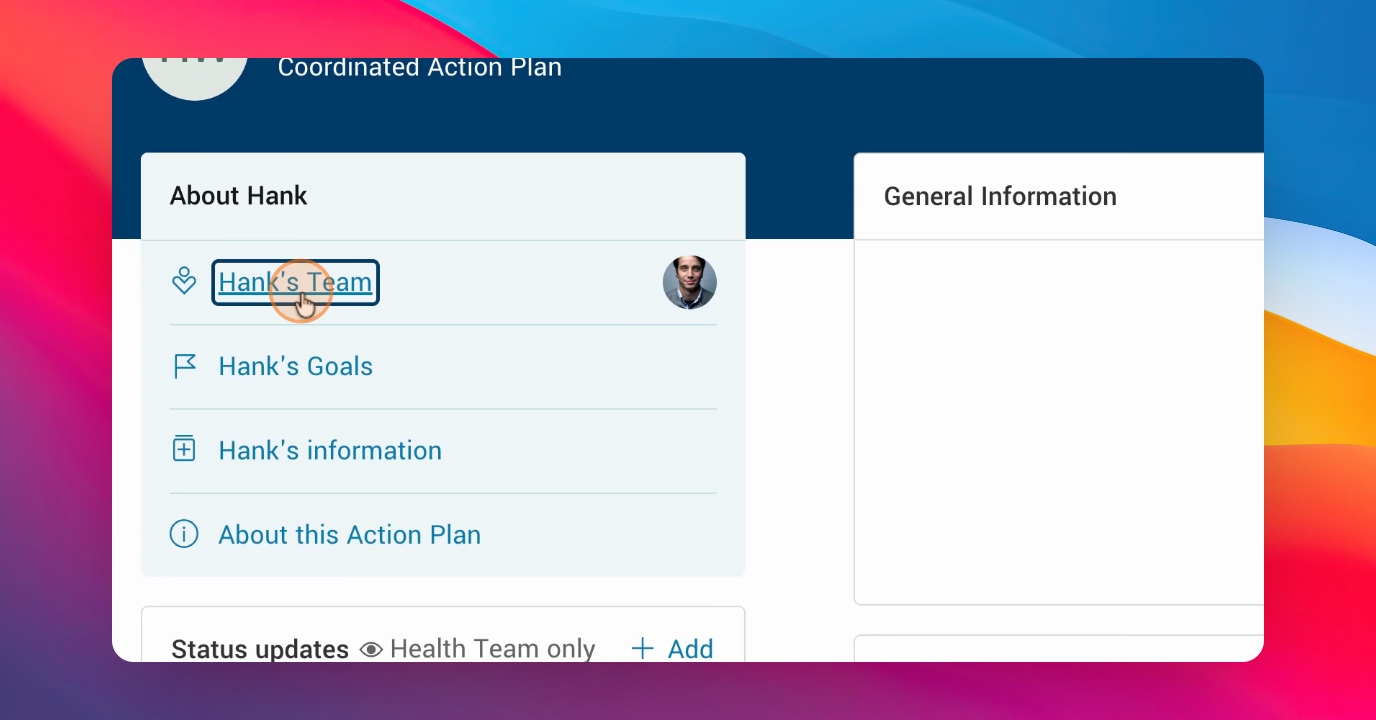
Navigate to the Person panel and click into the person's team.
Step 2: Locate the Invite Organization Button
If your organization is set up to invite other organizations, you'll see the Invite Organization button at the top right corner.
Step 3: Click the Invite Organization Button
Click the Invite Organization button to begin the invitation process.

Step 4: Select and Invite an Organization
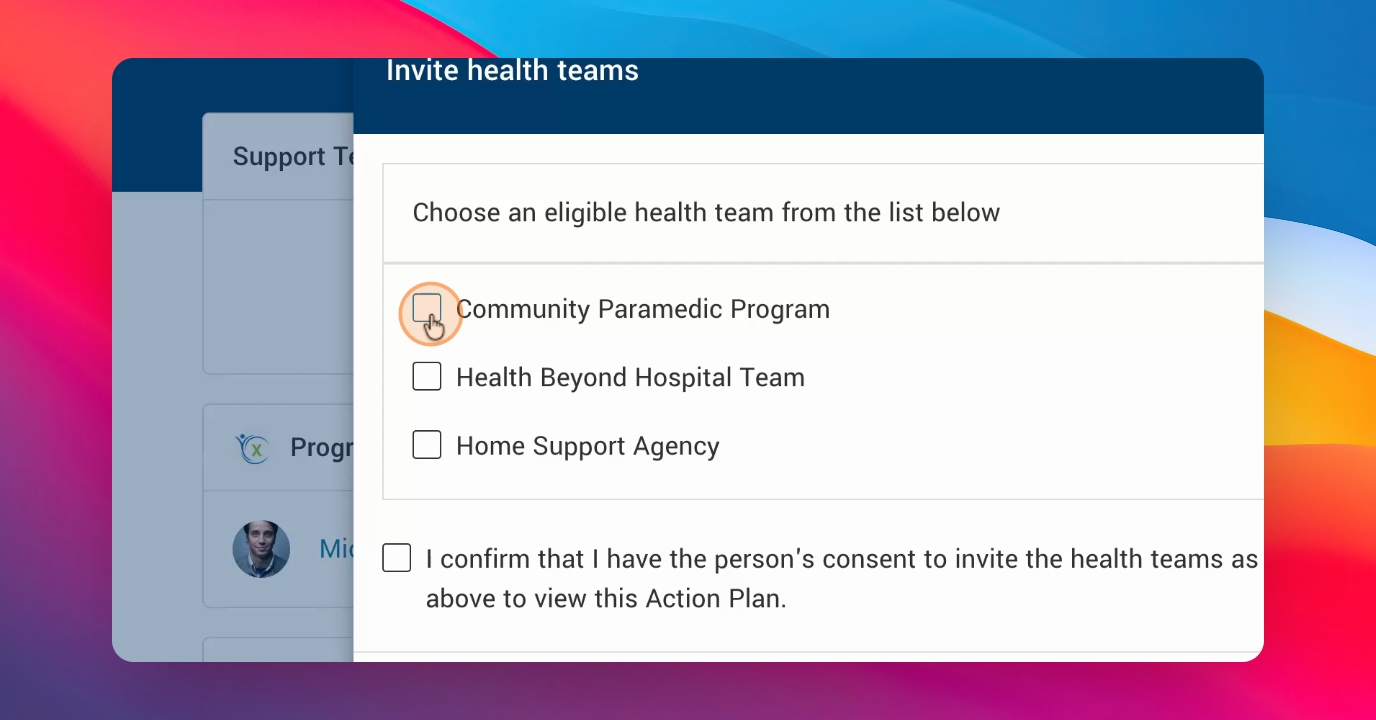
Choose the organization you want to invite from the list. Indicate that you have the person's consent, then click Confirm to send the invitation.
The invited organization will receive a notification about the invitation to the person's action plan. The invitation will remain pending until they accept. You can resend or remove any pending invitations. Once accepted, the organization will appear under your organization in the team list.

Thank you for following along.