

Stay connected and streamline interactions around Action Plans for effective patient care. You can create 1:1 and group messaging with the patient, their supporters and the other health care providers involved in the Action Plan.
TL;DR
Let's Do It Together!
Step 1: Access Messaging Center
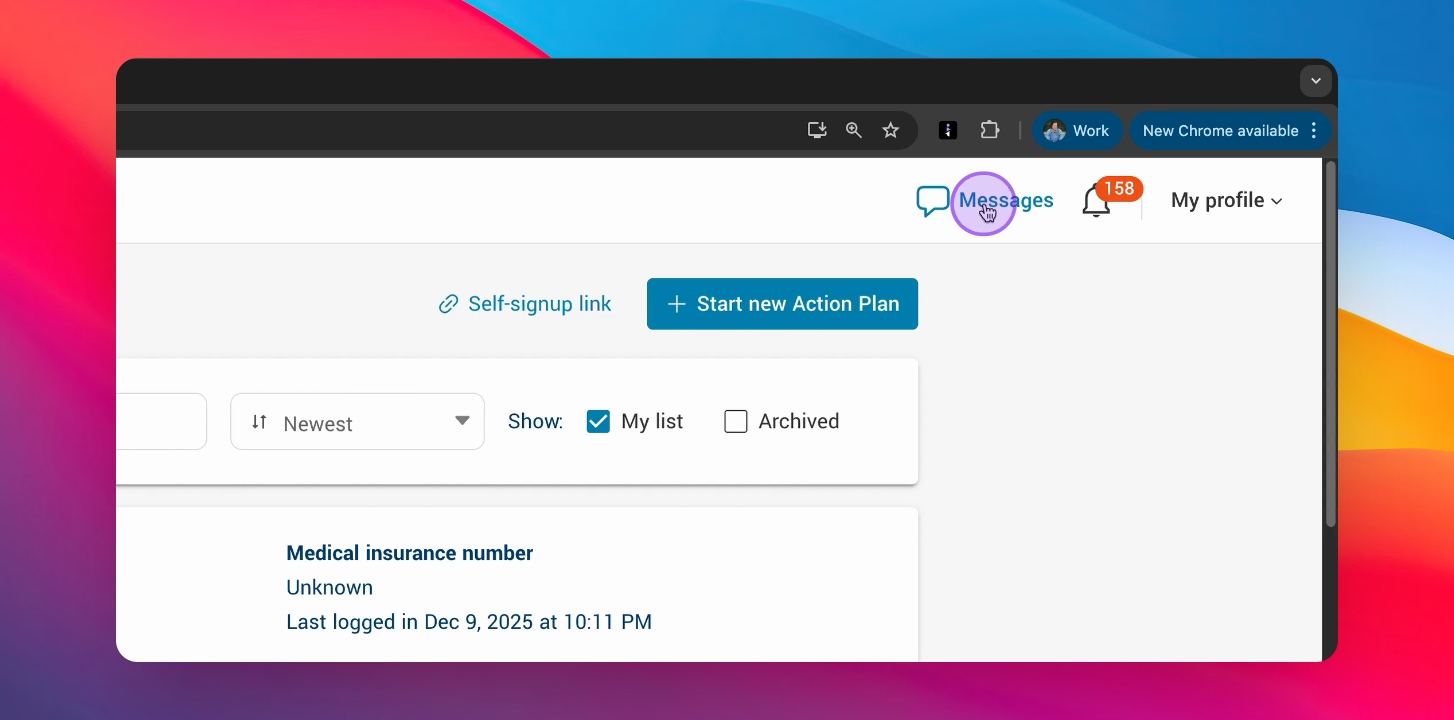
Click Messages in the top right corner.
You are now in the messaging center.
Step 2: View Active Channels
See all active message channels you've started.
You can now view your messaging history.
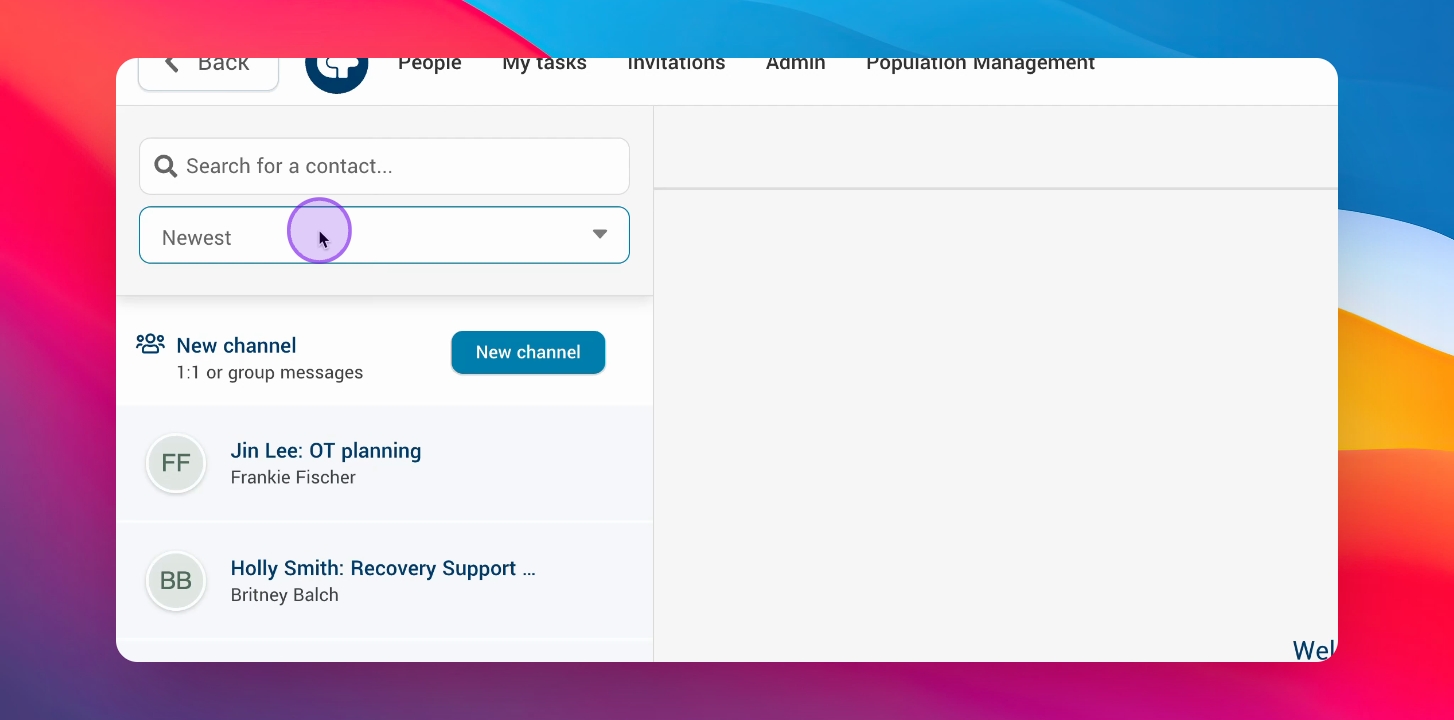
Step 3: Filter or Search Channels
Filter channels by oldest to newest or alphabetical, and search for a contact.
Step 4: Start New Messaging Channel
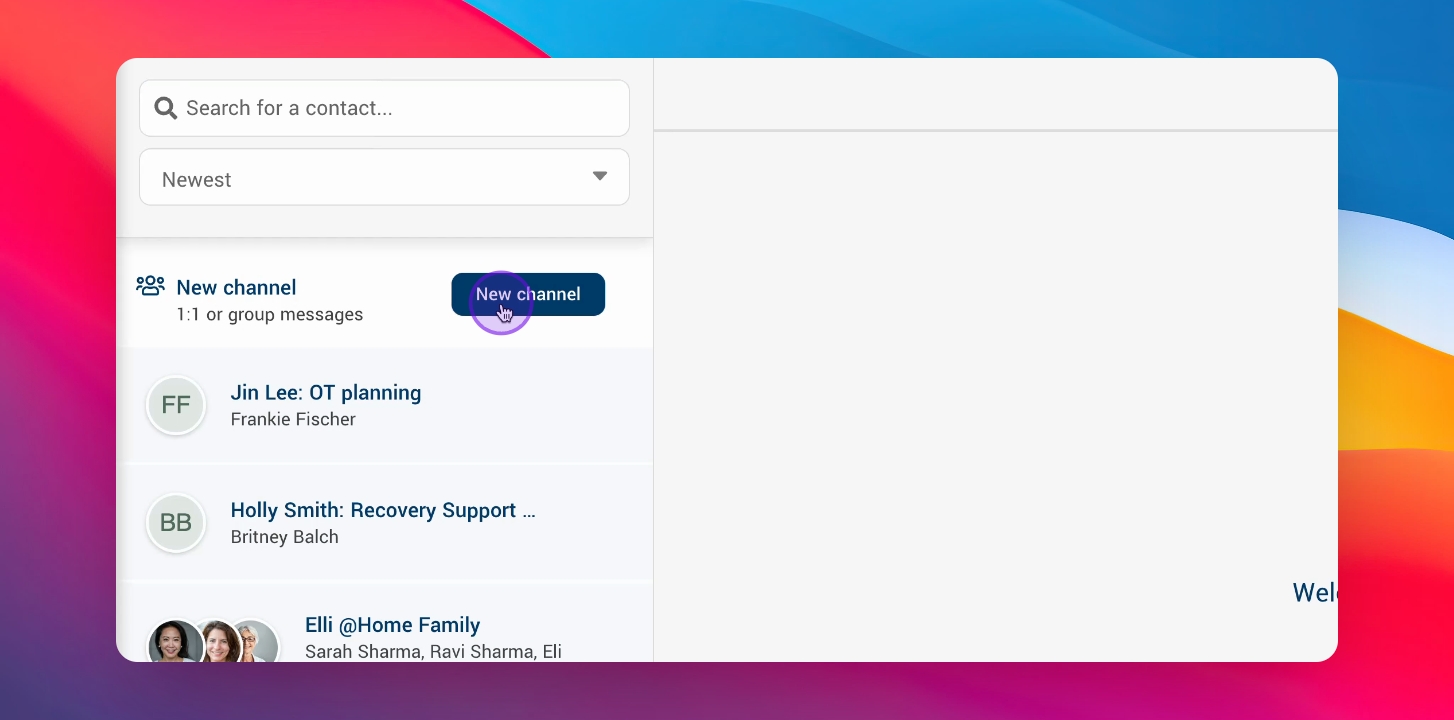
Click New Channel to begin.
Step 5: Identify Client
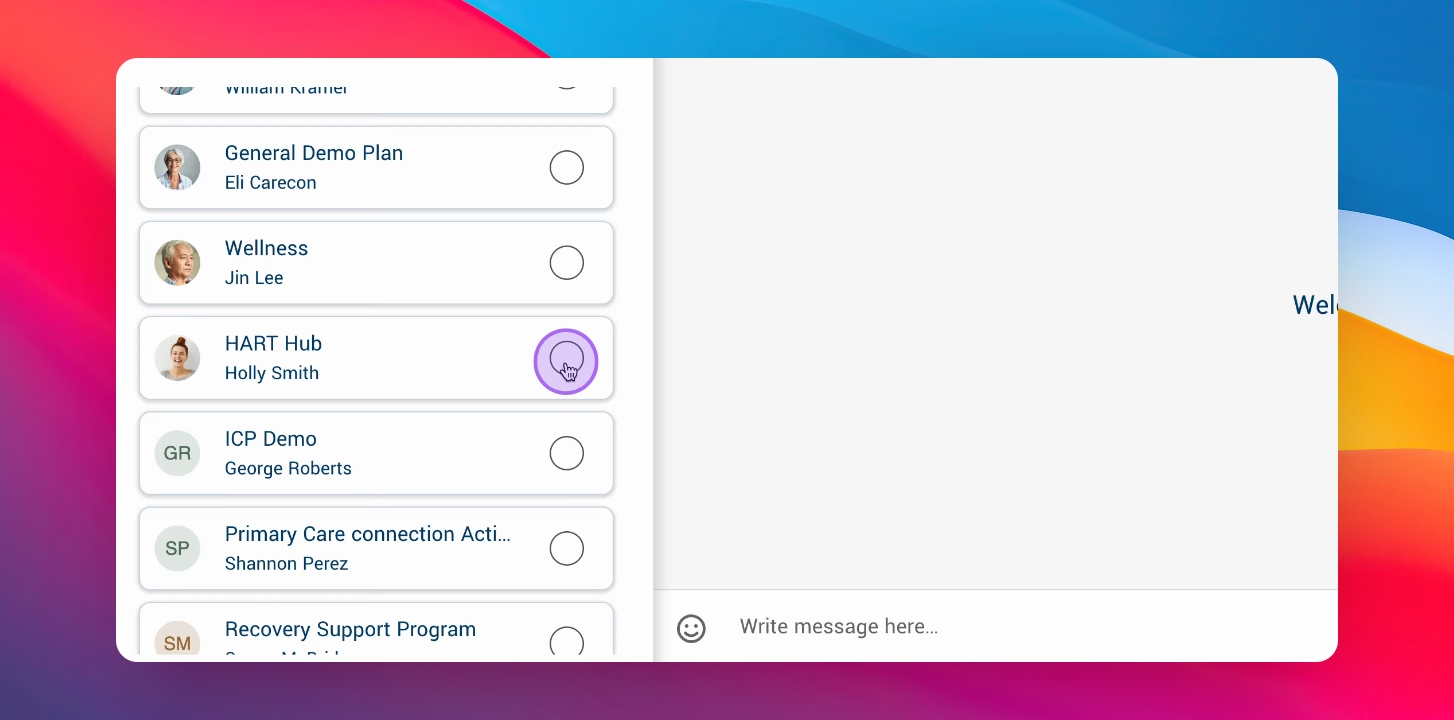
Identify the client or patient for the messaging channel.
In this case, it's Holly Smith.
Step 6: Select Participants
Choose individuals for the conversation, either one person or a group.
In this case, selected are Frankie Fisher and Brittany Balch.
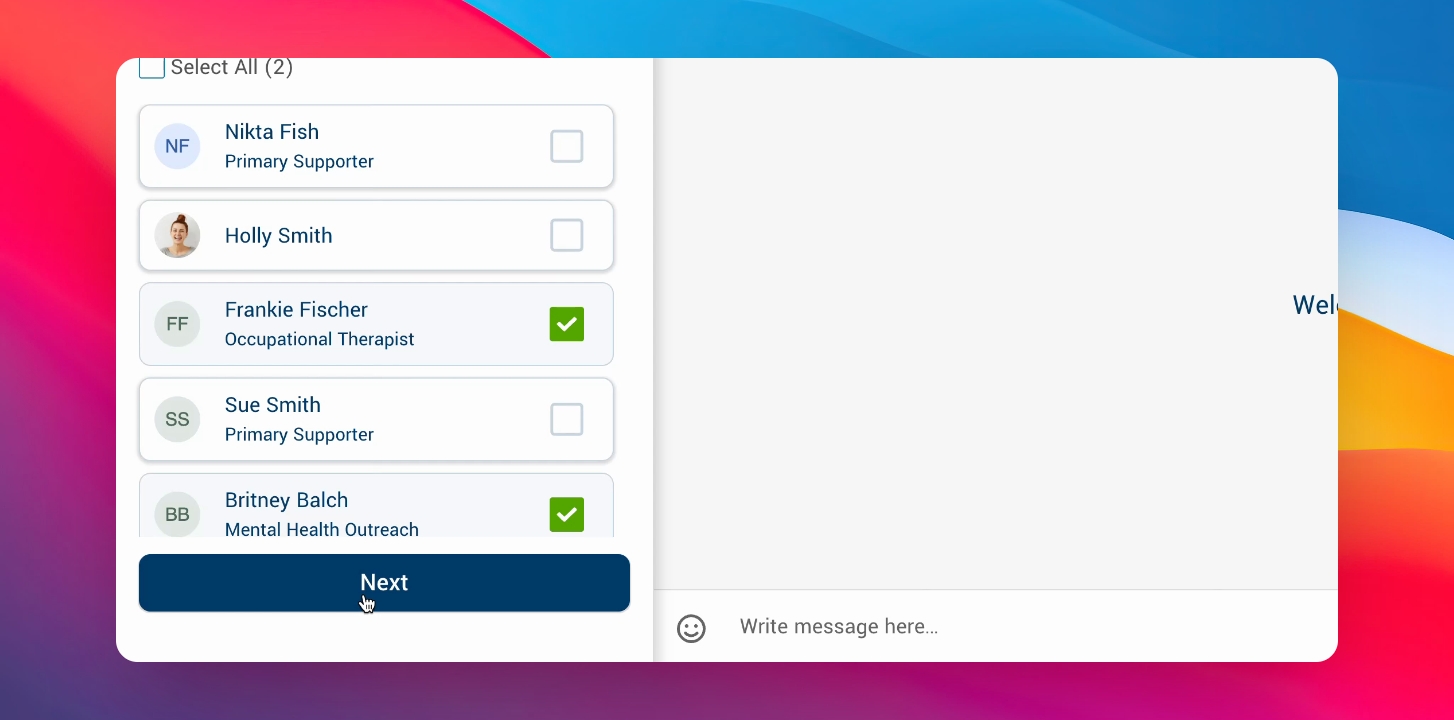
Step 7: Click Next
Click Next after selecting participants.
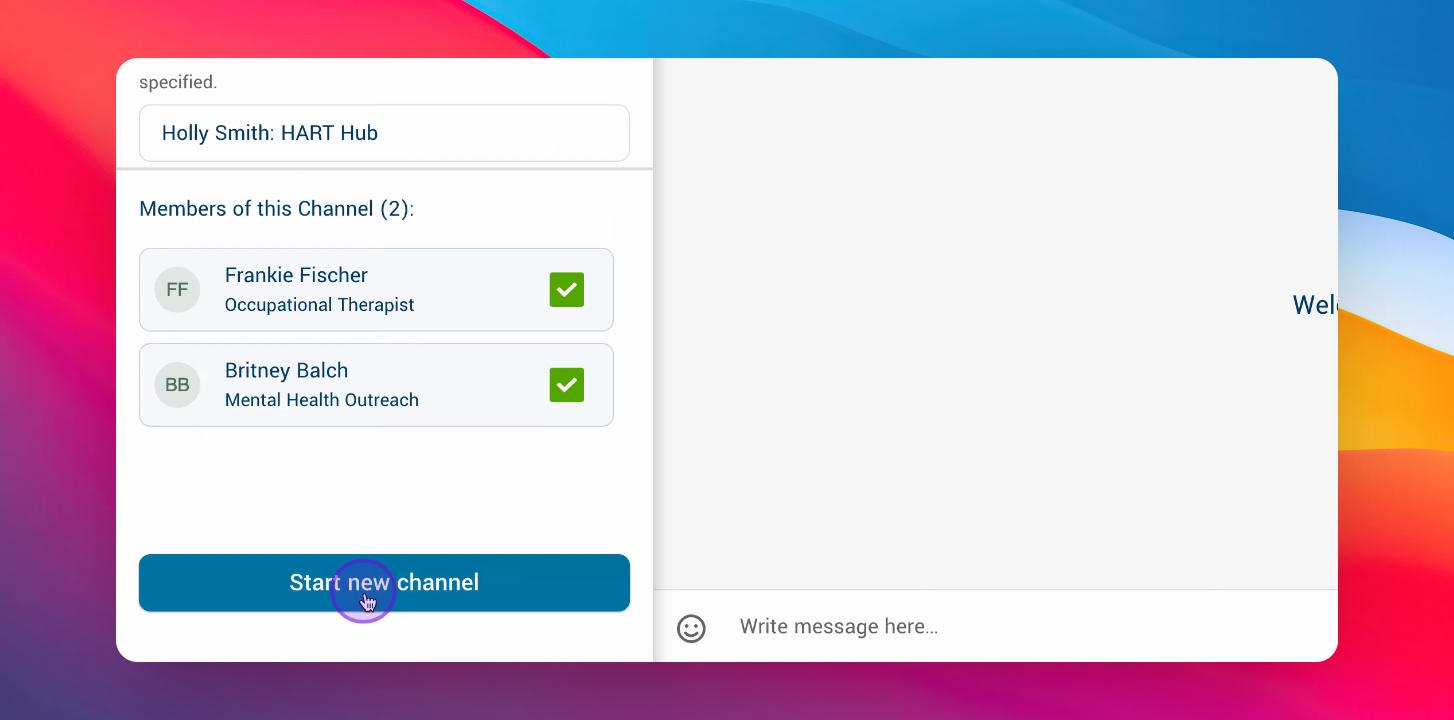
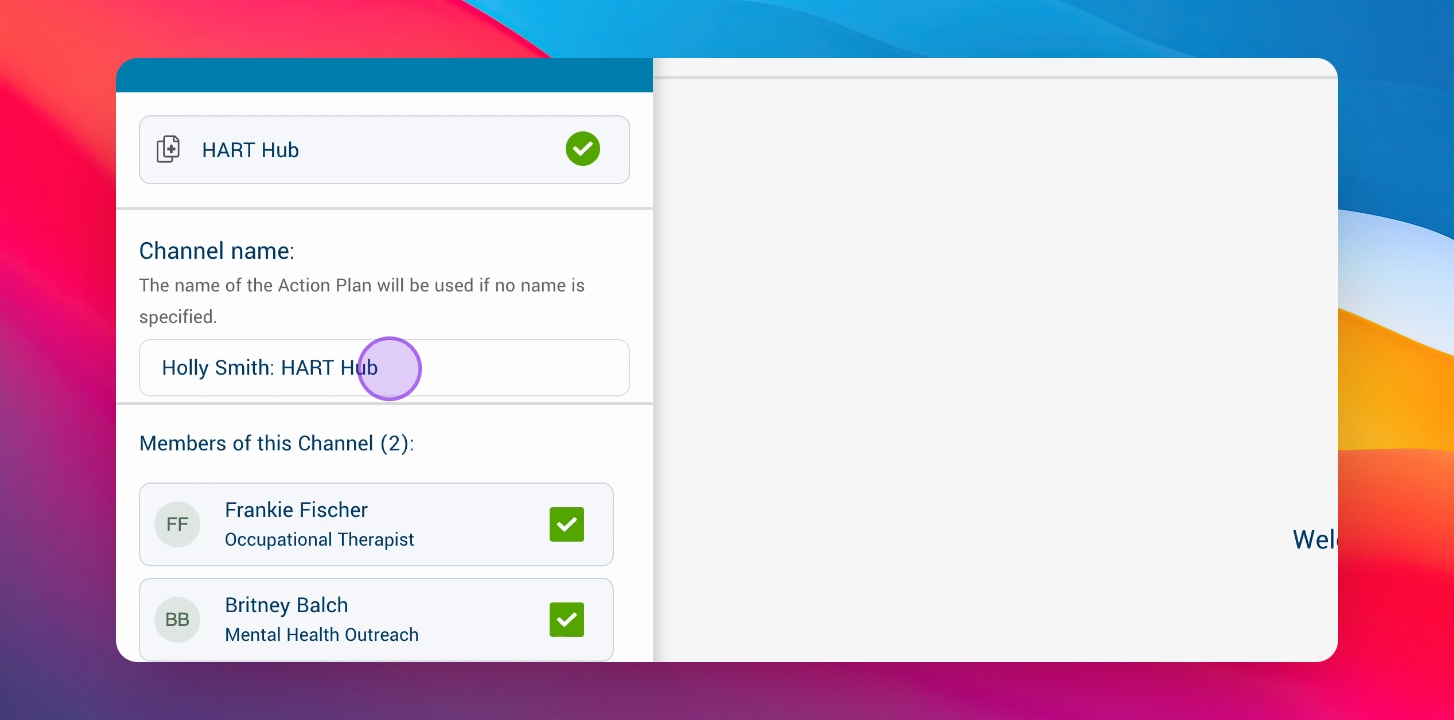
Step 8: Adjust Channel Name
Adjust the channel name like the subject line of an email.
Include client name, heart hub, and action plan name.
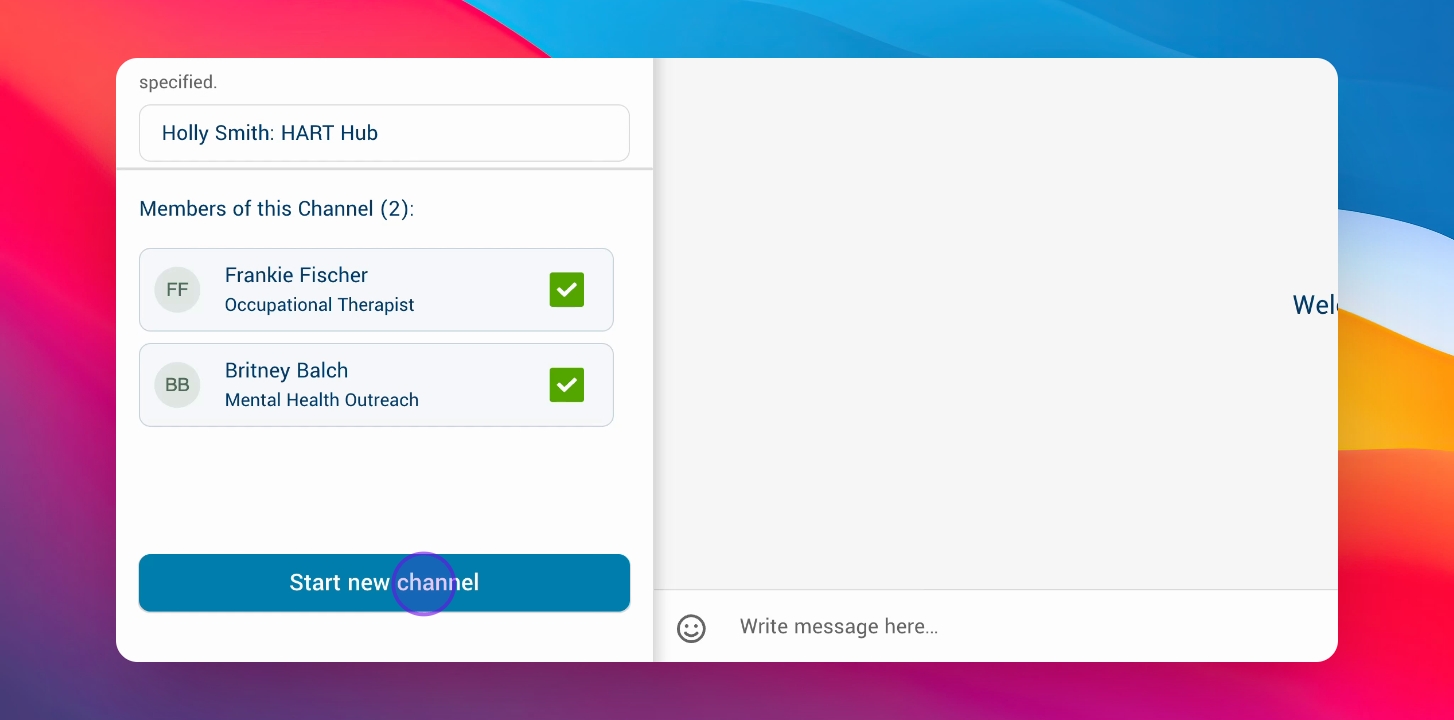
Step 9: Start New Channel
Click Start New Channel.
The messaging channel is now created.
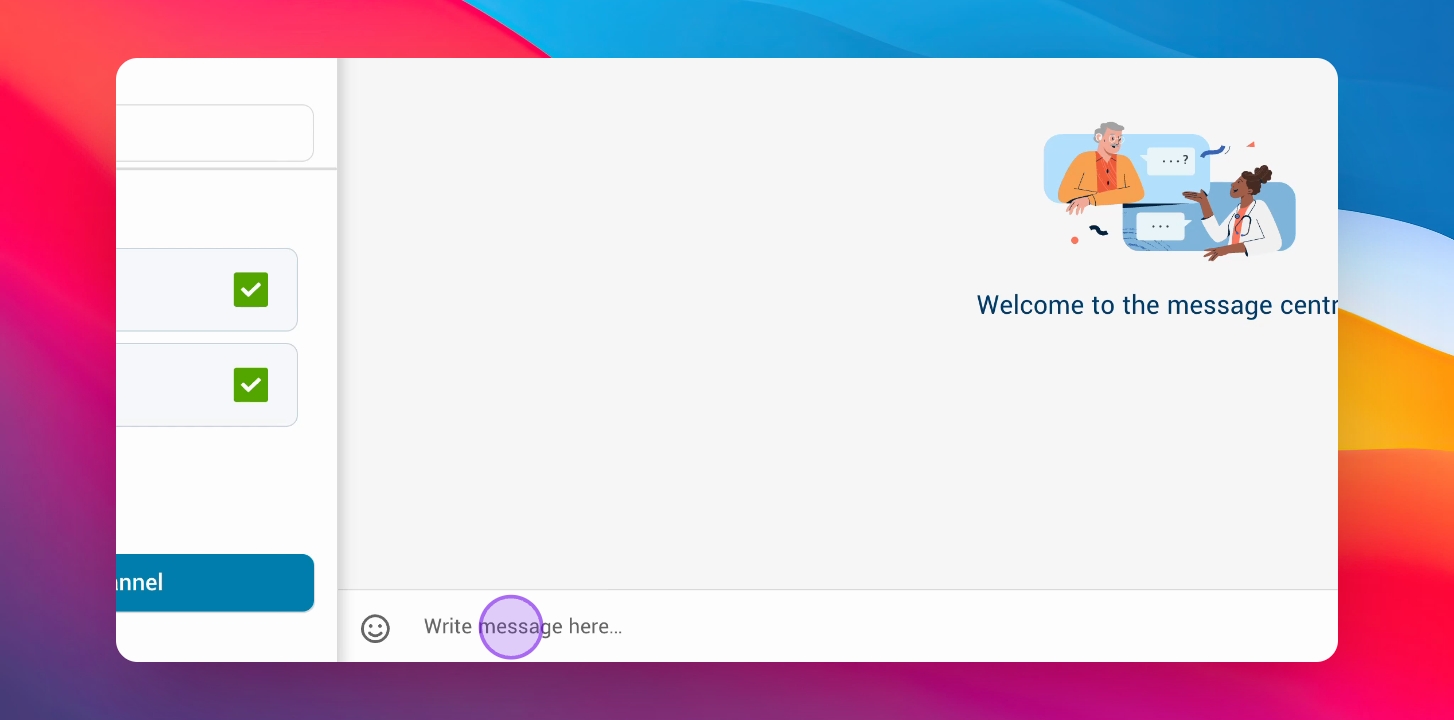
Step 10: Send Messages
Type your message and click send.
You can now communicate easily.
Step 11: Receive Notifications
New message notifications appear on the messaging icon.
Receive notifications through your preferred method. Learn how to modify your notification preferences here.
Batch notifications are designed to reduce notification fatigue by sending an email summary of new unread messages within a 5 or 15min timeframe, depending on how many messages a user receives.