Let's do it together!
Step 1: Locate Things to do block
Find the Things to Do block within the dashboard
Step 2: Add Activity
Click Add to start choose a Task or an Appointment.
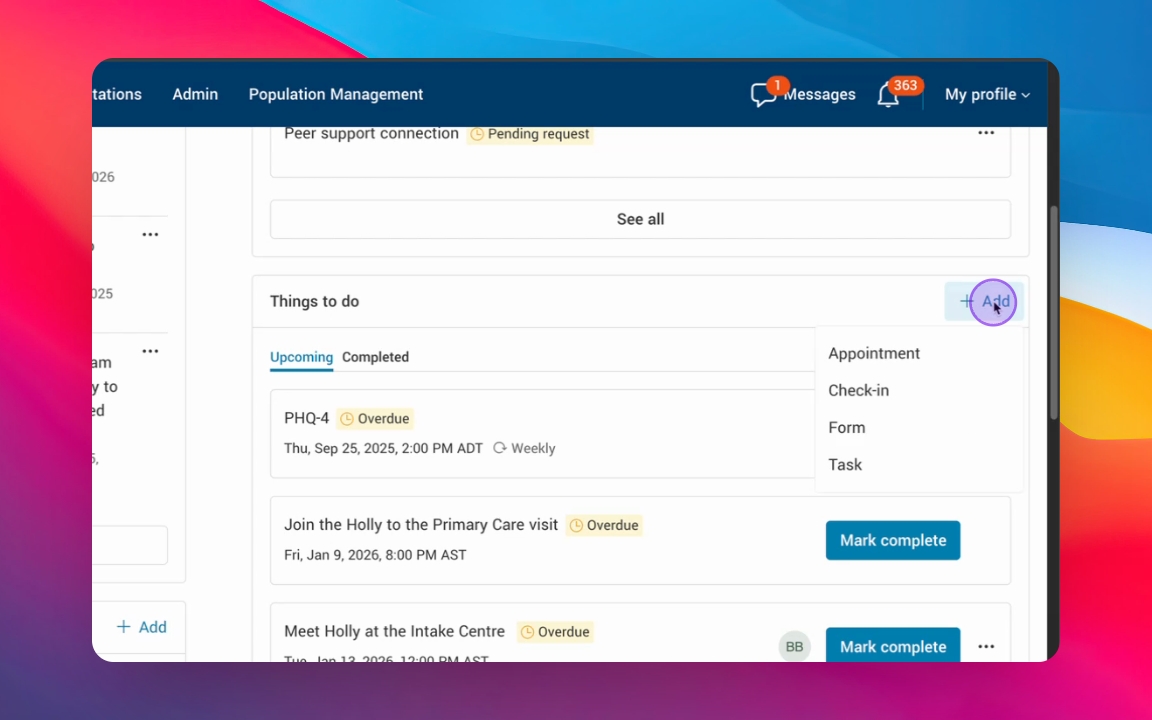
Step 3: Choose type of Activity
Select either an Appointment or a Task based on the collaboration needs.
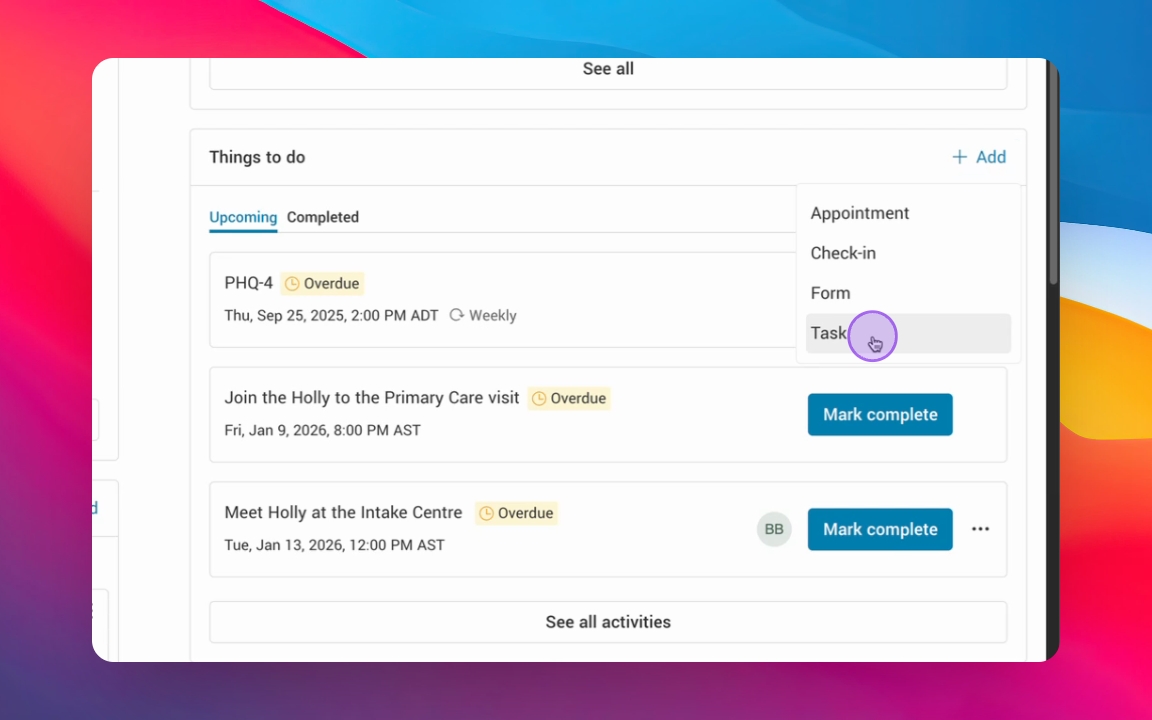
Step 4: Enter Activity details
Input the Title and any additional description required.
Step 5: Set Task Timing
Decide if the task should be completed at any time or scheduled.
Step 6: Add Resource
If needed, add a resource related to the task.
Step 7: Assign Task
Choose who to assign the task to, such as Health Care Providers across organizations, the client or support team members.
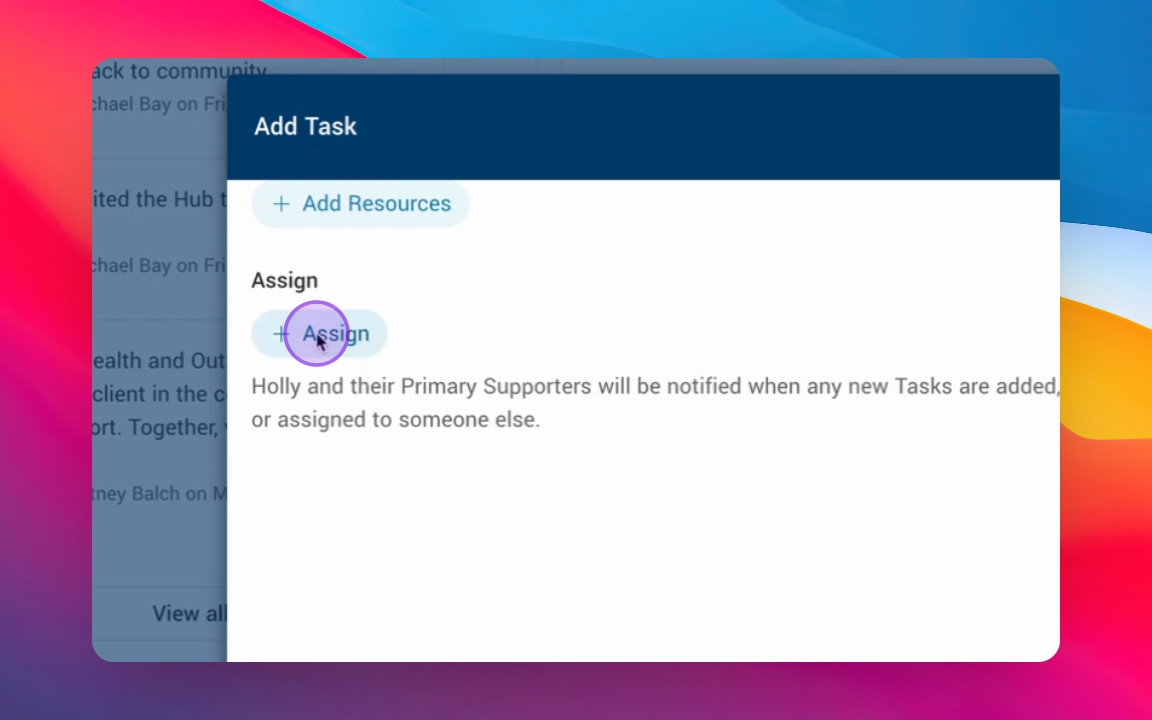
Step 8: Select Member
Select the specific member from organizations invited to the Action Plan.
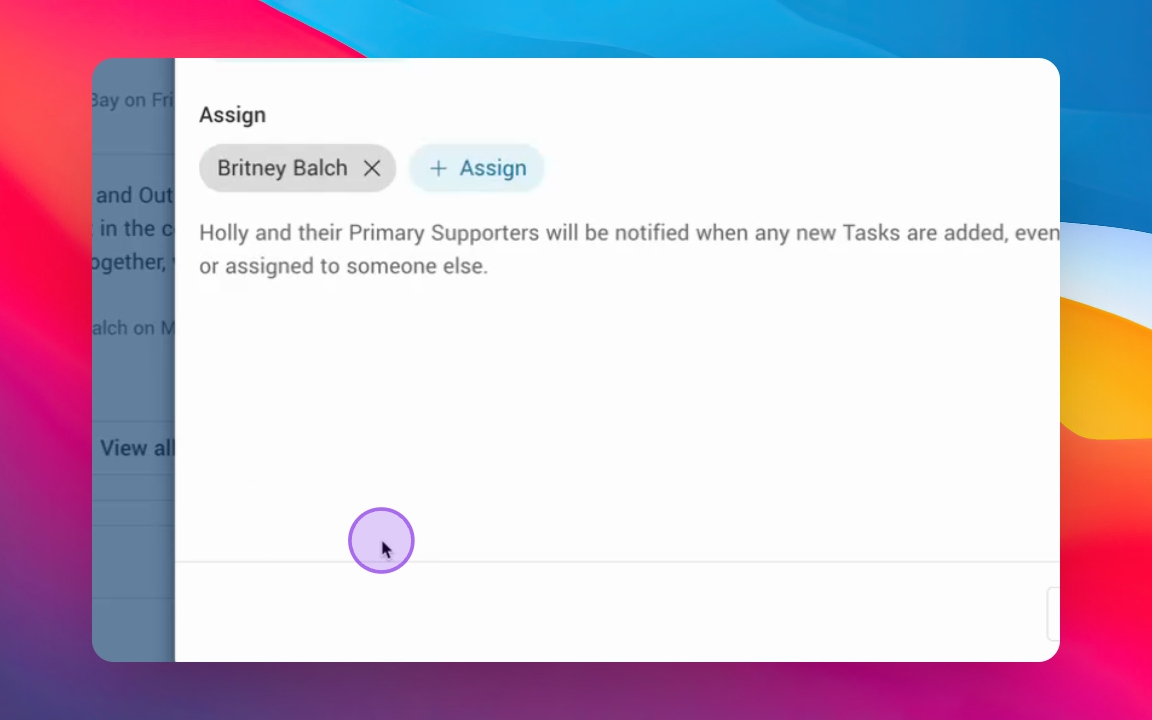
Step 9: Save Task
Click Save to finalize the assignment.
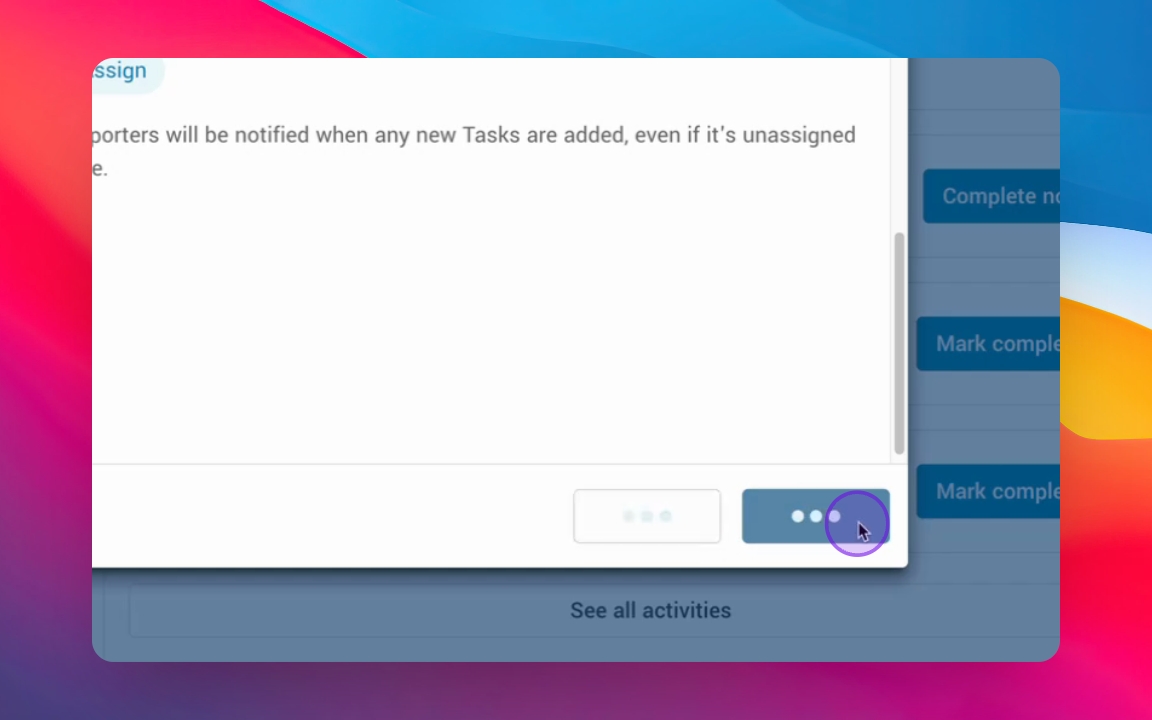
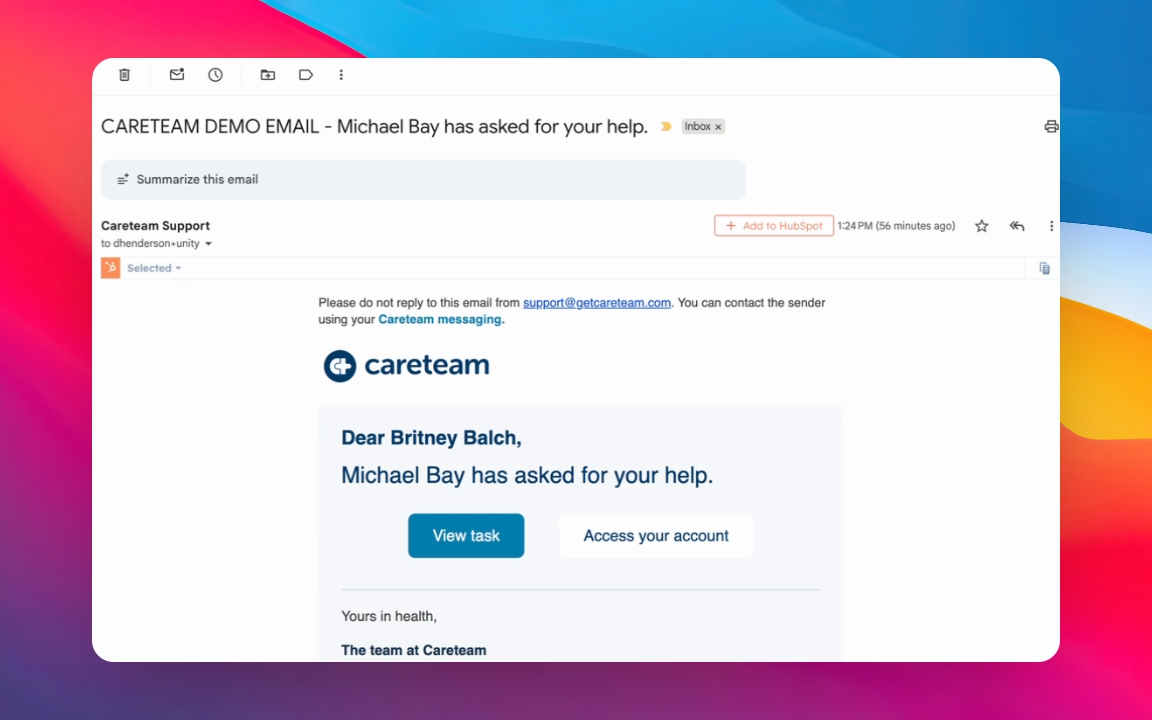
Step 10: Notification Overview
The assigned Health Care Provider will receive a notification via Email (and in app). Below is an example of the email notification.
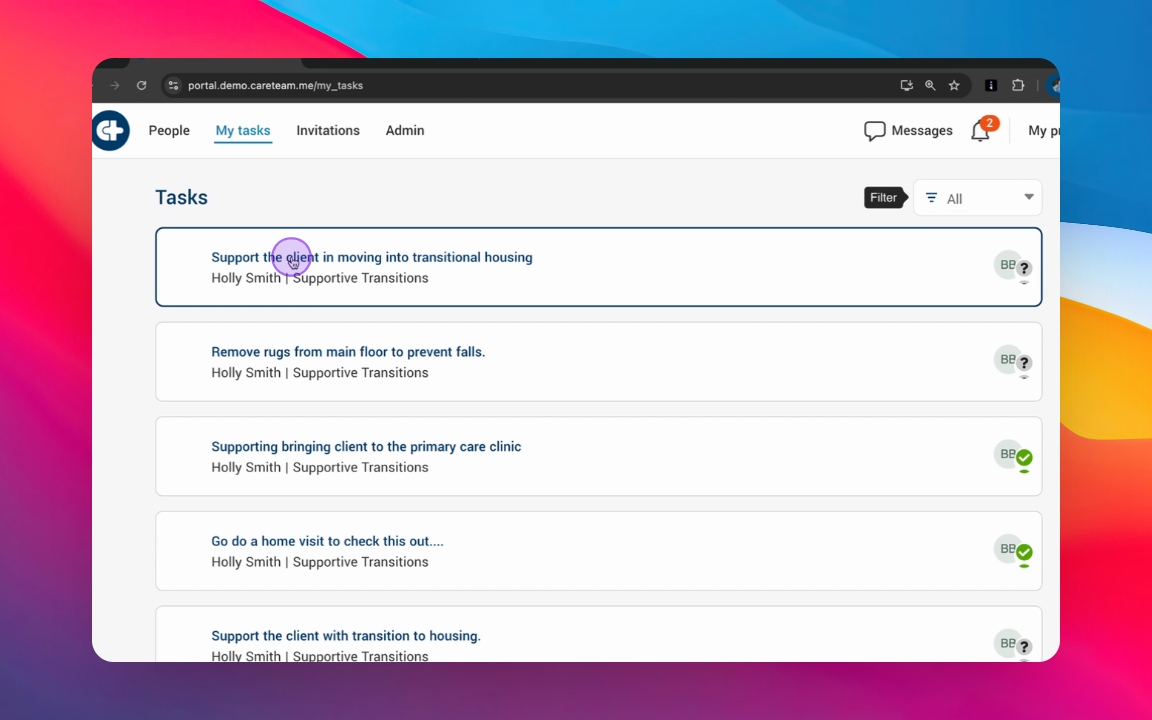
Find the assigned Activity under the notification bell or My Tasks section within the application.
My Tasks provides a personalized view of all activities assigned to you, including Tasks and Appointments that you have been asked to accept or decline.
This section helps you stay organized, coordinate care, and prioritize your work by clearly showing what requires your attention next.
Review newly assigned items and Accept or Decline them as needed
View activities grouped by:
Unscheduled Tasks – items that still need to be scheduled
Scheduled Tasks & Appointments – items with a confirmed date and time
Use this view to understand where your support is needed and manage your workload efficiently
My Tasks serves as your central workspace for tracking responsibilities and ensuring timely follow-up with patients and care teams.