

Let's do it together!
Step 1: Locate the Block
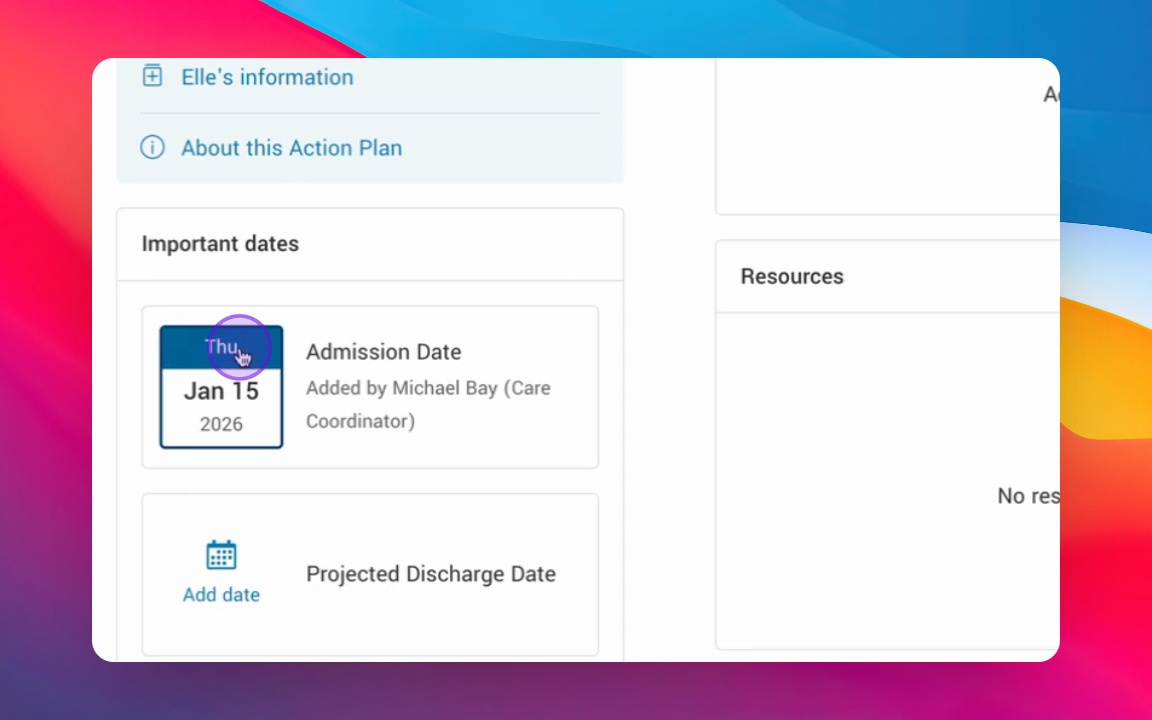
Find the Important Dates block on your dashboard. It can be in the main or side panel of the dashboard.
Step 2: Edit the Important Date
Click the edit symbol in the calendar block to adjust the important date.
Step 3: Save Changes
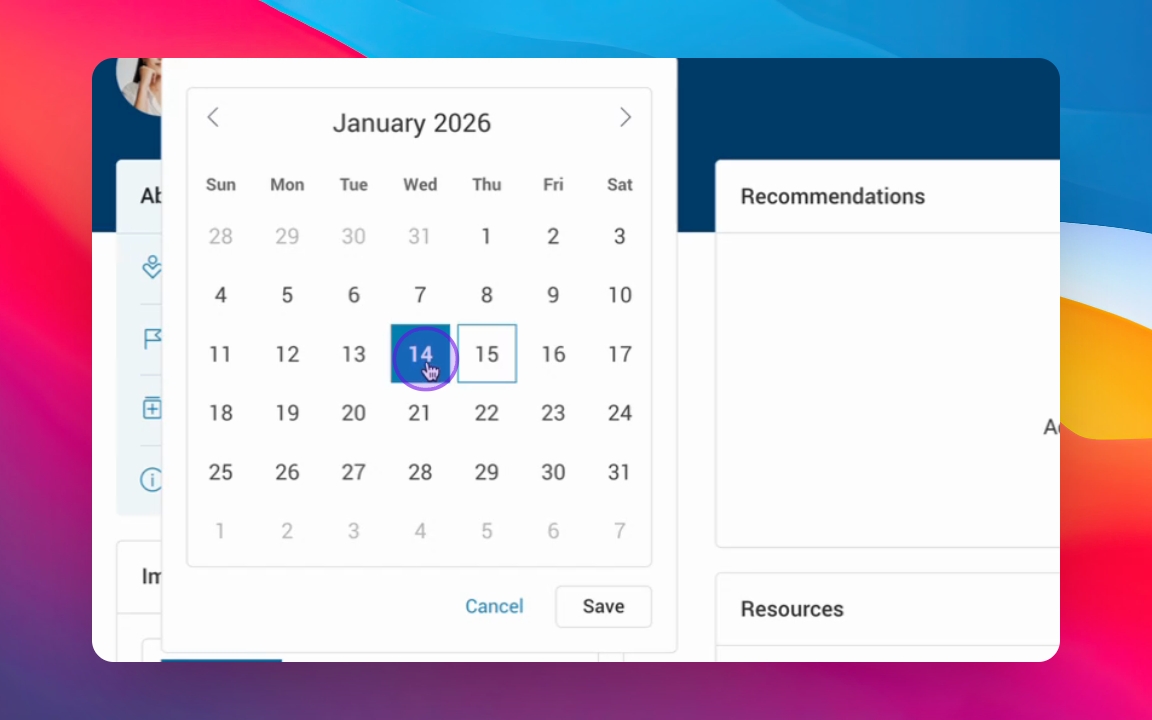
Adjust the date in the calendar and click Save to confirm the update.
Step 4: Adding an Important Date
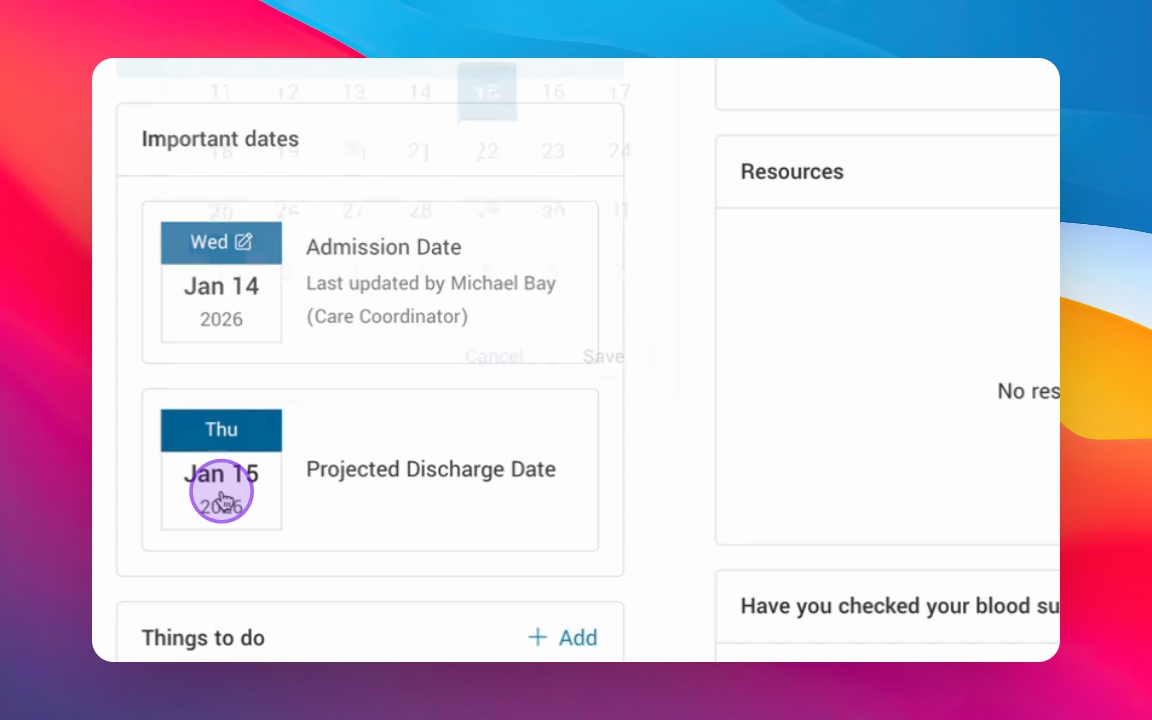
To add an important date, click Add date and identify the date.
Step 5: Save the Date
Click Save to confirm the newly added projected discharge date.
Step 6: Understand Configurability
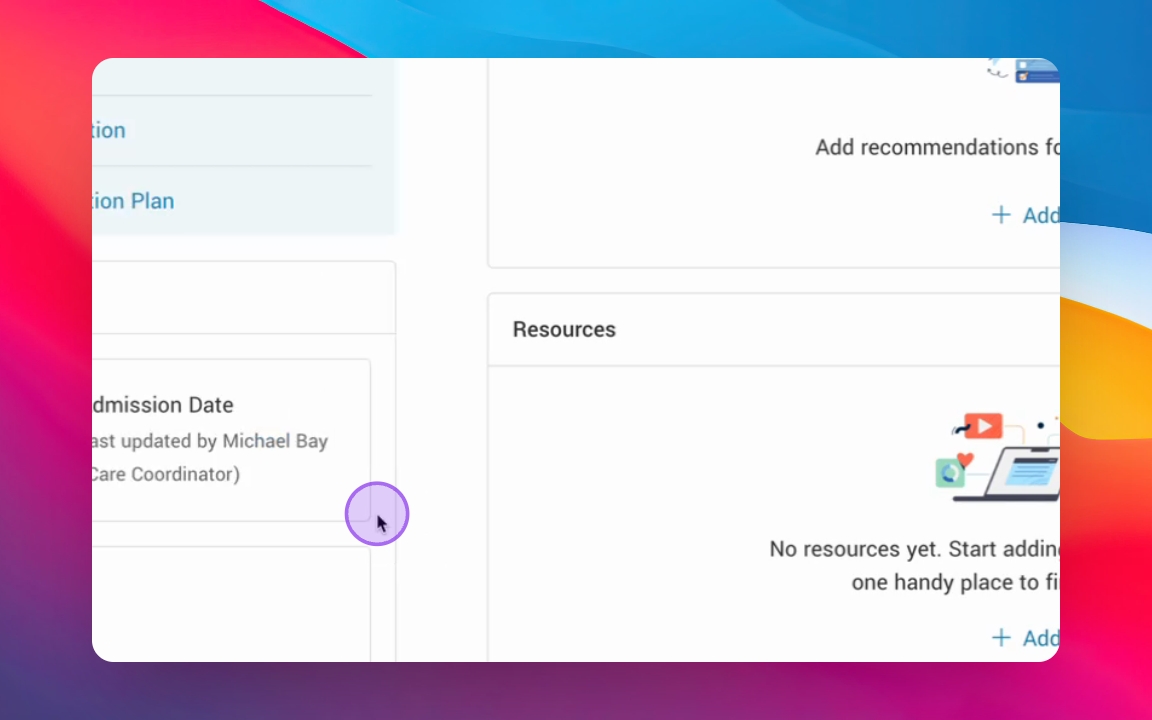
Note that the Important Dates block can have one, two, three, or more important dates configured and the titles can be adjusted to meet the needs of the use case (ie. Date of diagnosis).