Let's do it together!
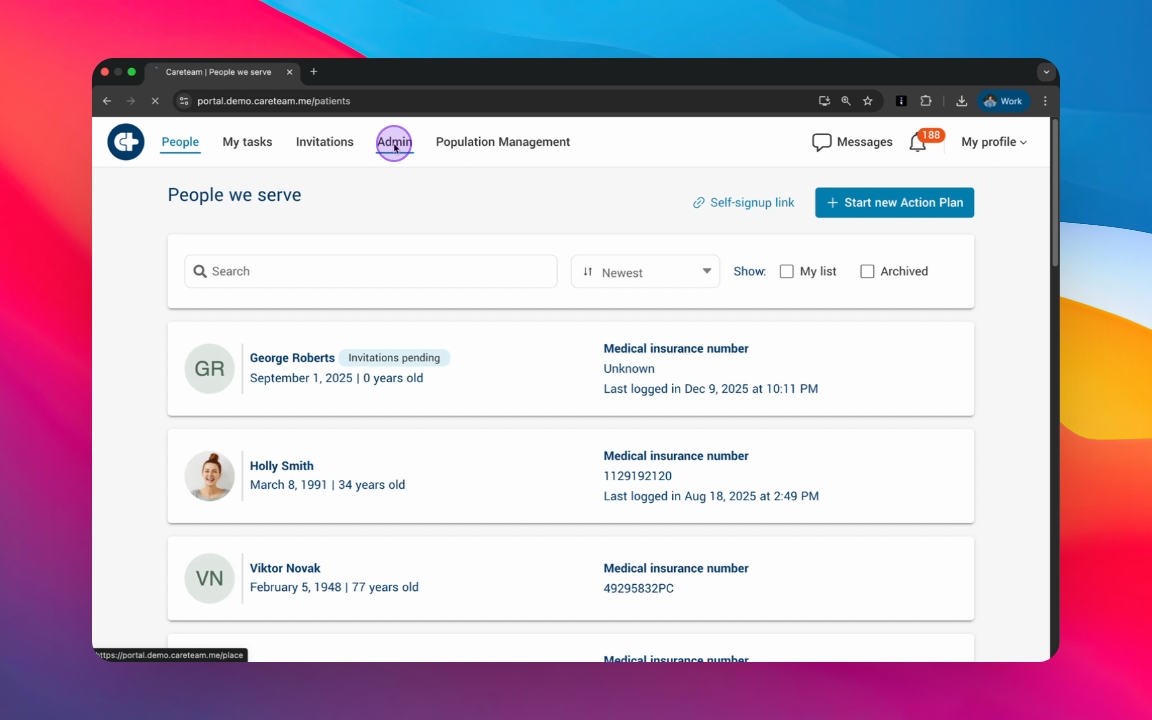
Step 1: Open the Admin tab
Click into the Admin tab to access user management.
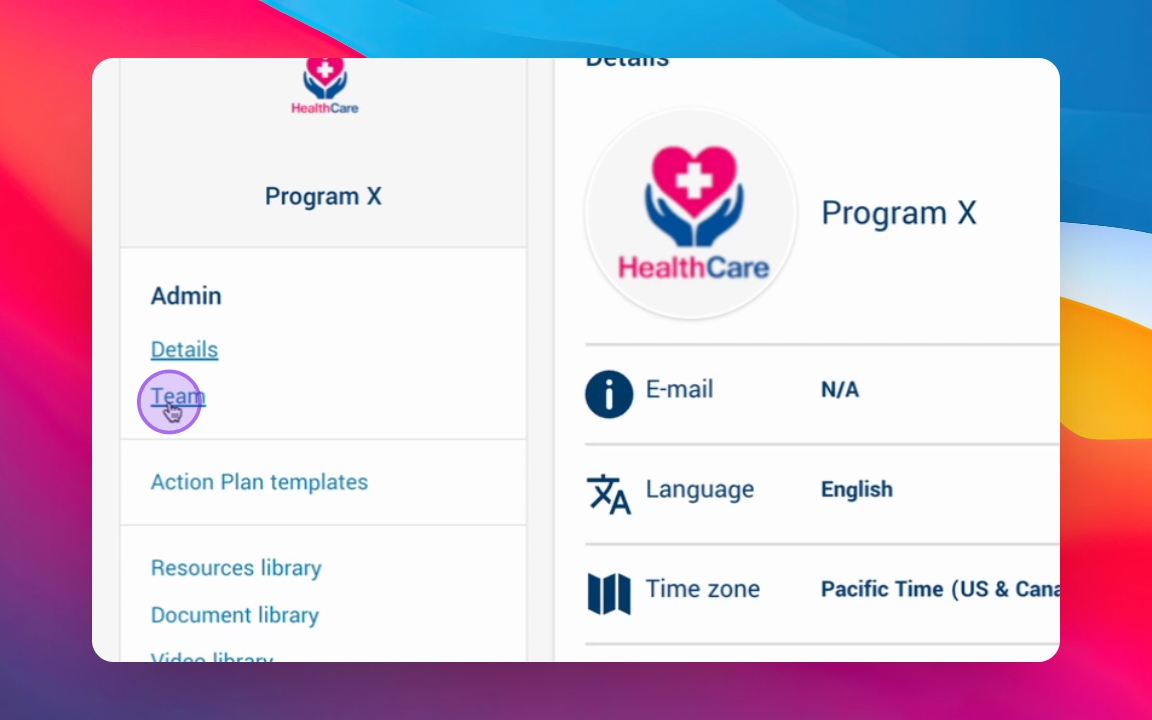
Step 2: View Team
Click into Team to see all users and their current status.
Step 3: Review User Details
Check user details such name, role, invitation status, and last login.
Step 4: Resend Invitations
If a user hasn't accepted their invitation, you can resend it.
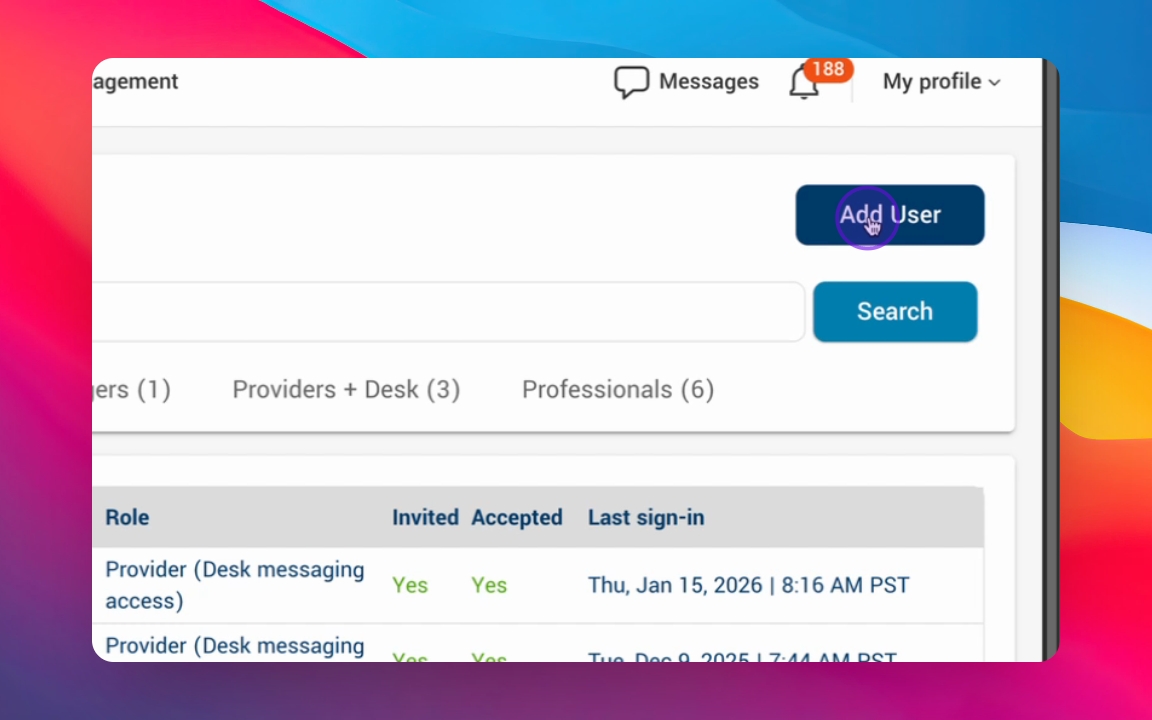
Step 5: Add User
Click Add User to start adding a new user.
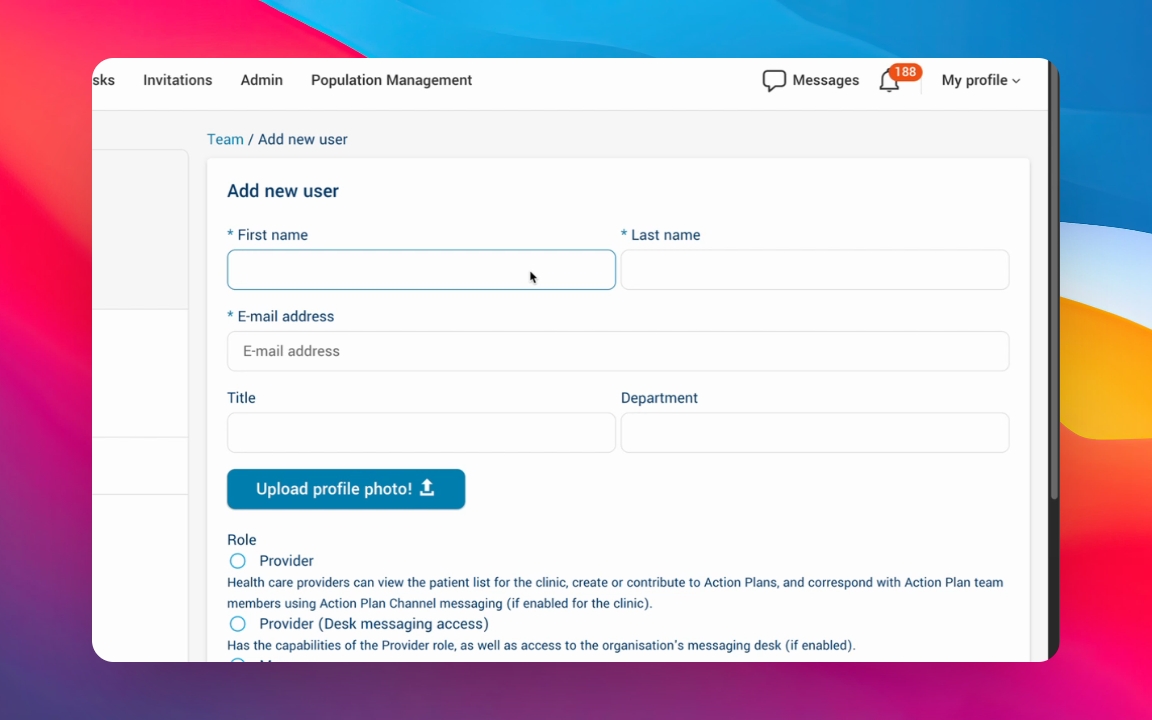
Step 6: Fill User Information
Enter the user's first name, last name, and email address. You may also add title and department.
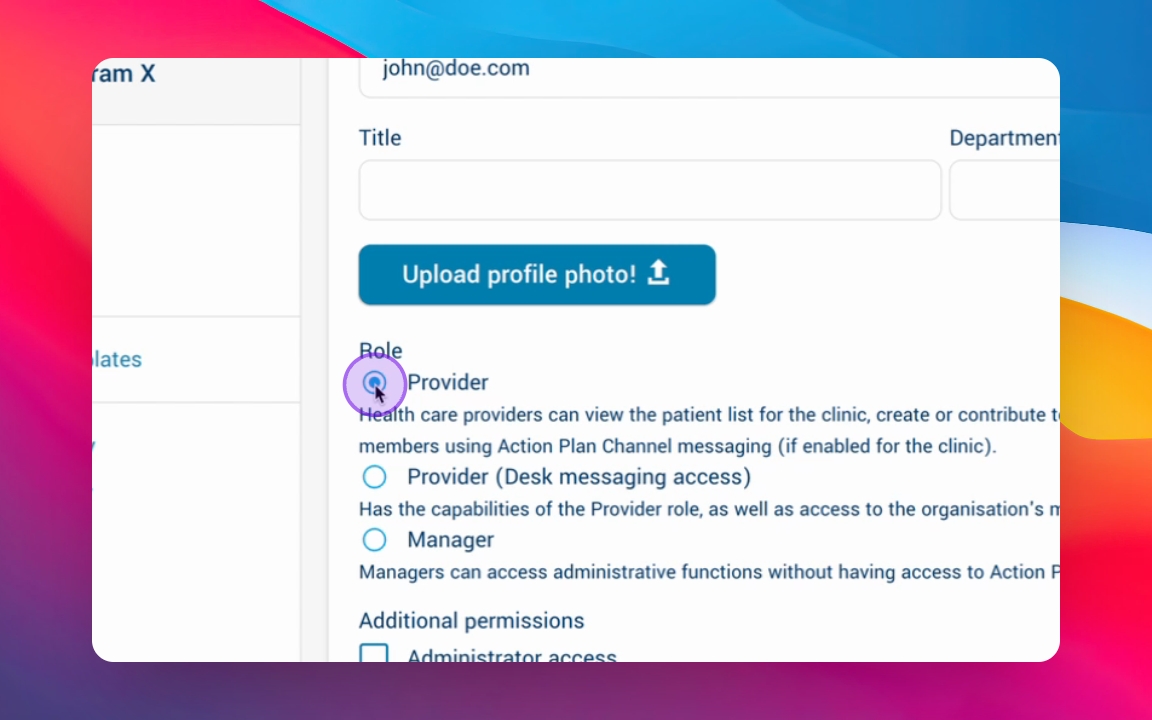
Step 7: Select Role
Choose the role for the user: Provider, Provider with Desk Messaging, or Manager.
Provider
Health care providers can access the patient list, create and contribute to Action Plans, and use Action Plan secure messaging to communicate with Health Team members.
Provider (desk messaging access)
Assistants can register patients, administer Action Plans on behalf of Providers, manage the secure desk messaging feature, and use Action Plan secure messaging to communicate with team members.
Manager
Managers can access administrative functions (users and library content) without having access to personal health information.
Step 8: Add additional permissions
Add any additional permissions, such as Administrative access or Intake receiver.
Step 9: Send Invitation
After filling out the user information and permissions, send the invitation.
Administrator access
Manage the healthcare users and Action Plan library content.
Intake receiver
Manage Health Team invitations from other organizations.
Step 10: Track Invitation Status
Monitor whether the user has accepted the invitation on the main panel.
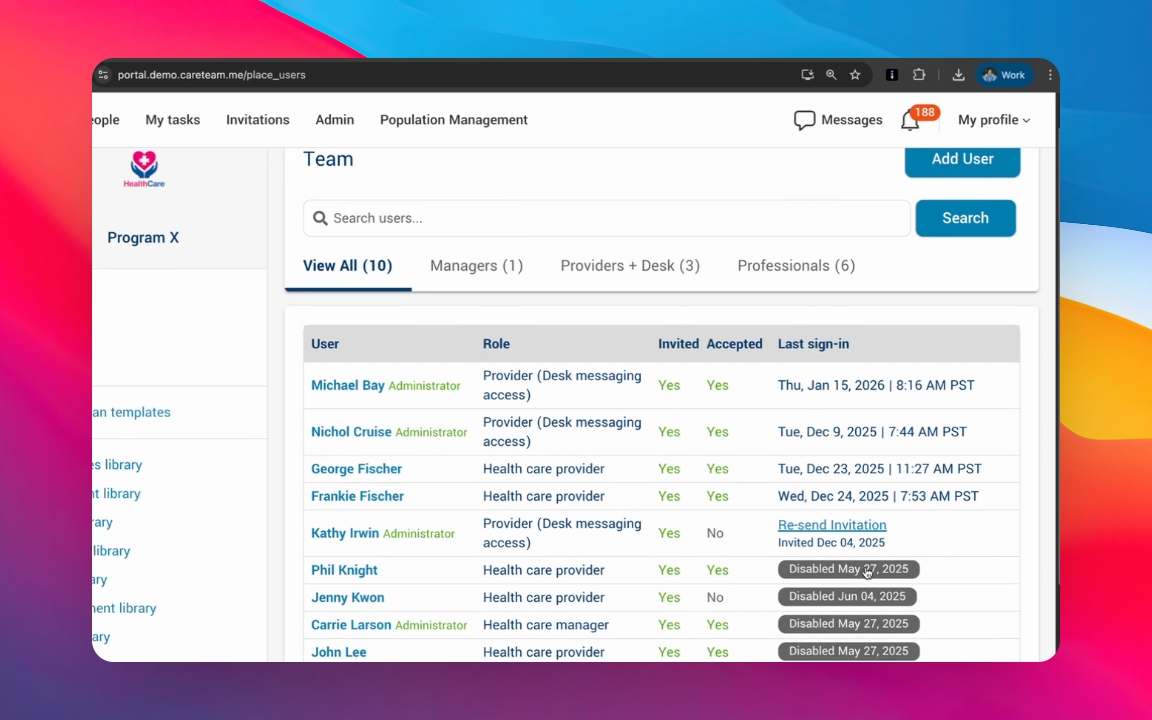
Step 11: Disable User Access
If needed, disable a user's access by identifying them and clicking into their profile.
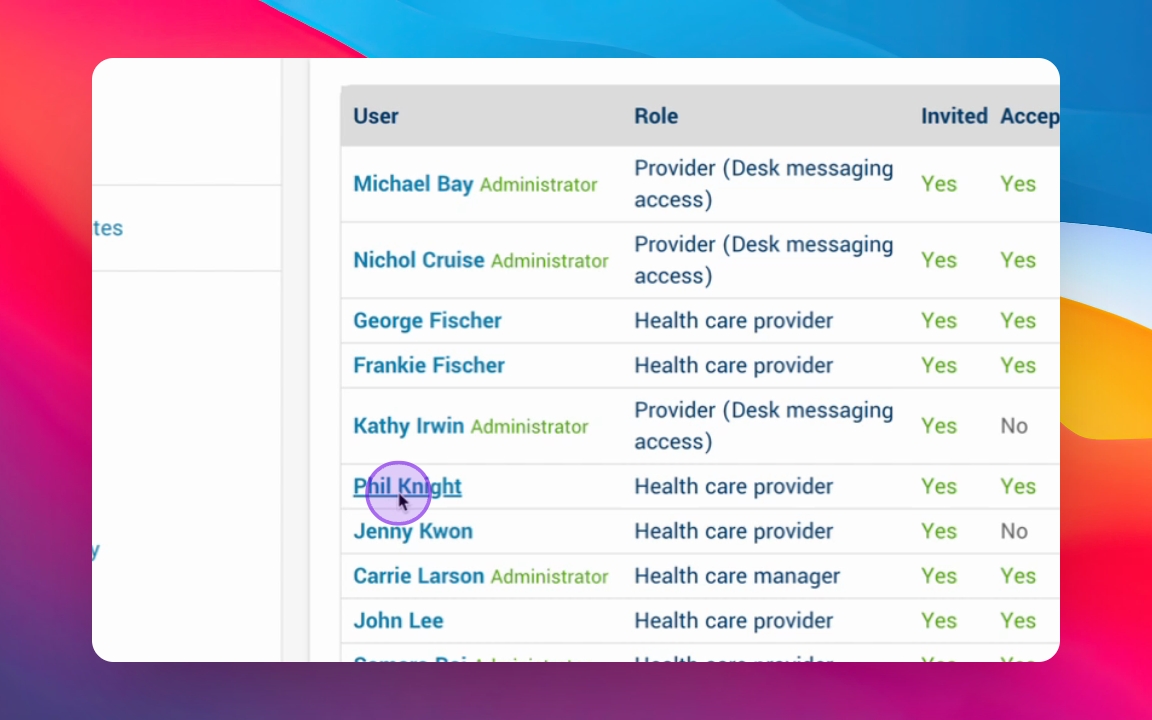
Step 12: Edit User Profile
Click into Edit to adjust user roles and permissions.
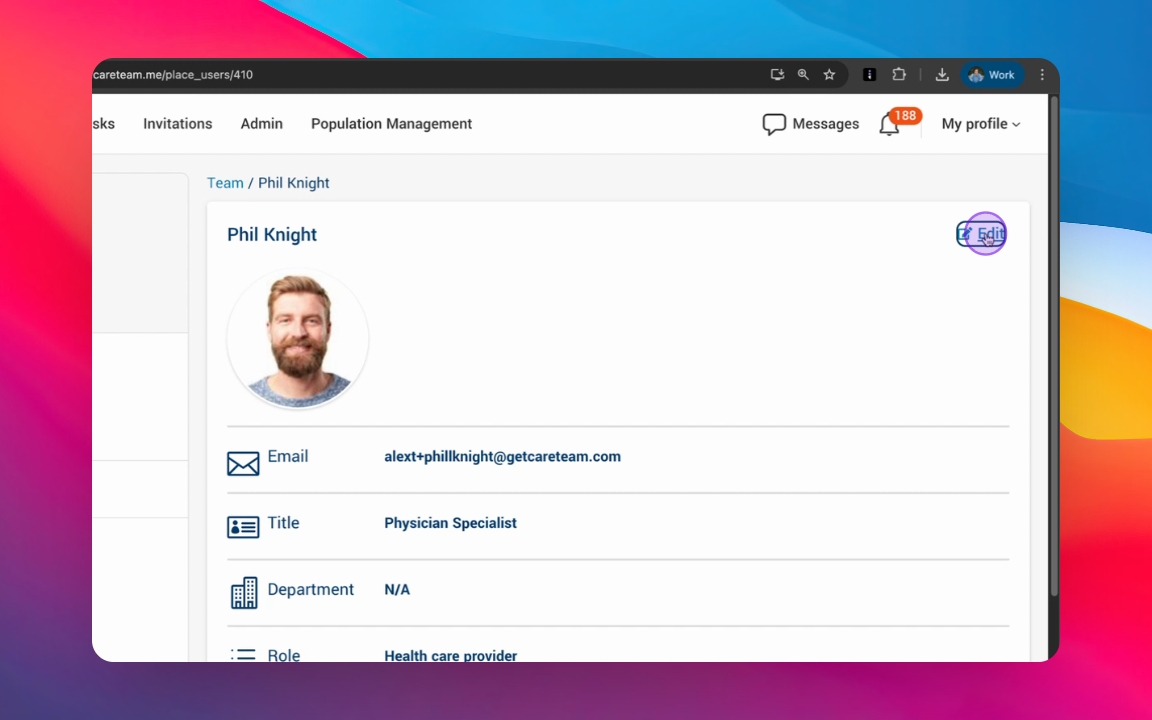
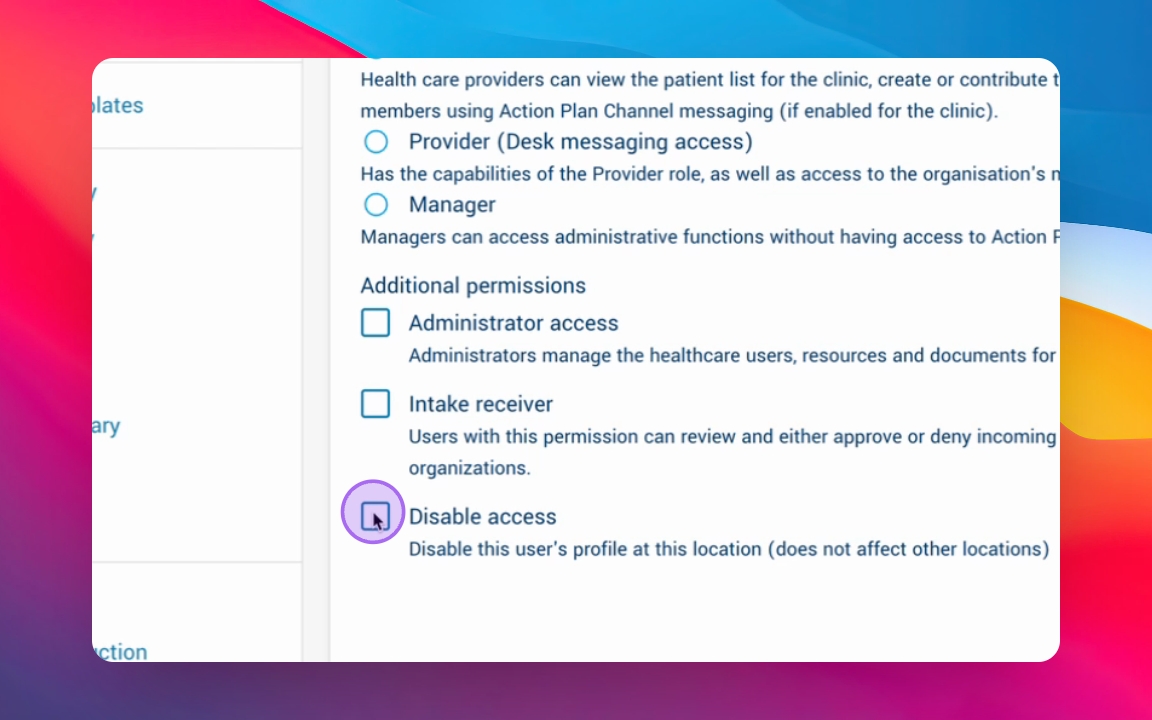
Step 13: Disable Access
Click Disable Access and then Save to disable the user's account. Once disabled, the user will no longer be able to access Careteam.