

🎥 Quick reference video
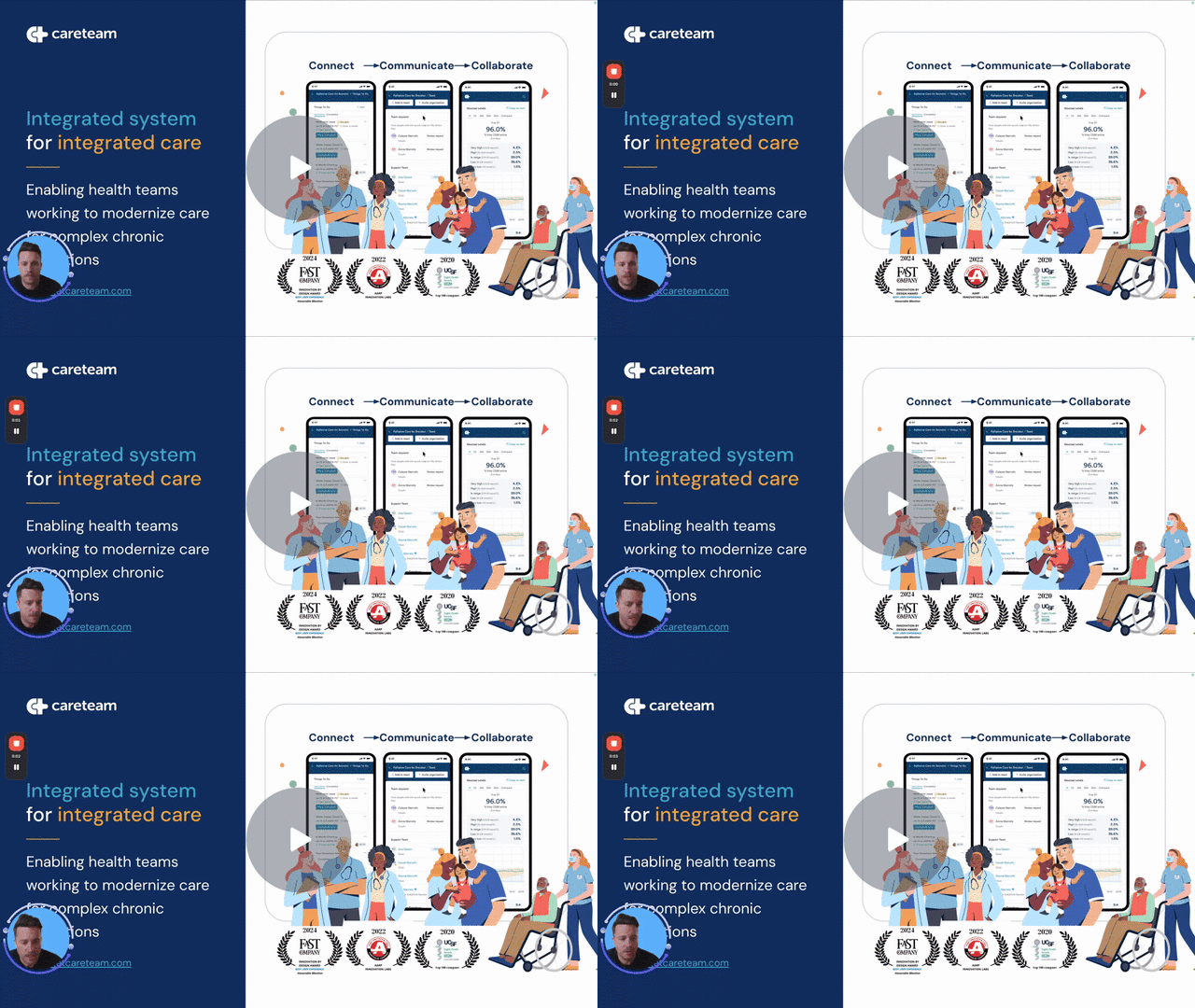
Before diving in, watch this short video walkthrough of how Careteam supports Quest across USAT, General Services, and the Niagara HELPS program: 📽️ Watch the video
Using Careteam for Quest Integrated Care - Watch Video
👥 Who is this for?
Staff supporting clients through USAT, General Services, or the Niagara HELPS program
Partner organizations invited to collaborate on a client's Action Plan
Care coordinators and providers involved in shared care planning across QUEST's three pathways
This guide is for staff and partners working together to support shared clients across Quest's USAT, General Services, and Niagara HELPS pathways.
🎯 Purpose of using Careteam to support Quest
Careteam gives QUEST one shared, secure workspace to coordinate care around a shared client — without the telephone tag and scattered updates that come from each organization communicating its own way.
✔️ Coordinate care live, across organizations, on one dynamic shared care plan ✔️ Replace phone tag and one-off updates with a single, up-to-date source of truth ✔️ Configure a dashboard suited to what each pathway needs ✔️ Keep the person and their support team informed as the plan evolves
🧭 What Careteam is (and is not)
Careteam is:
A shared, live workspace for cross-organization collaboration
A place to share updates, tasks, resources, and goals of care
Configurable by pathway — QUEST's dashboard is built around what USAT, General Services, and Niagara HELPS actually need
Careteam is not:
❌ An EMR
❌ A replacement for your record of care in TELUS PS Suite
QUEST continues to document clinical care in TELUS PS Suite. Careteam replaces what typically happens outside the EMR — the telephone tag and scattered updates involved in coordinating across organizations.
🚀 Quick start guide
1️⃣ Filter to your clients
From the client list, turn on My List to see only the clients you're part of the Action Plan for. This cuts the noise from the other two pathways.
2️⃣ Start a new Action Plan
Go to Start New Action Plan and choose the pathway: General Services, Niagara HELPS, or USAT. Click Create Action Plan, then enter the client's name, date of birth, and health card number (all editable later).
Scroll to the bottom of the setup screen and hit Activate. This step is easy to miss, and skipping it will cost you time later.
3️⃣ Invite the client and build the team
From the client's information, click Invite, add their email, and send it. Then go to the Team section to add or adjust who's involved from Quest, plus any family members or unaffiliated healthcare providers (like a community pharmacist).
🔑 How Action Plans are created and shared
QUEST staff start Action Plans for clients in USAT, General Services, or the Niagara HELPS program
A practice client, Practice Pete, is available so you can try the workflow before working with a real client
Once activated, invite the client and build out the team from there
As partner organizations come onto Careteam, you'll be able to invite them into the Action Plan with the client's consent — this list will grow as more organizations onboard
🤝 How collaboration works across the team
Careteam replaces fragmented communication with one live Action Plan. When one organization posts an update, everyone invited sees it right away.
Team Shows everyone on the client's care team and their organization. Add family members or unaffiliated healthcare providers here, and invite additional organizations as they onboard.
General Information The shared bulletin board — visible to the person and their support team as well as the health team. Everyone invited gets notified when it's updated.
Status Updates (health team only) For updates between organizations that the client shouldn't see. Works the same as General Information, just restricted to the health team.
Coordination Where the team collaborates on current status, next steps, key actions underway, and goals of care. Click View Details and History to see who added what and when.
Resources Share resources tailored to the person, or upload a one-time document — like an assessment — the same way you'd attach a file to an email.
Things To Do Turns next steps into action — appointments and tasks that can be assigned to anyone on the team, even across organizations, and marked complete as they're done.
Goals Keeps the client's goals front and center. If the client is invited, they can add and update their own goals too.
Messaging Secure messaging with anyone on the team, across organizations — no more chasing people down by phone or email.
👤 About client and family involvement
QUEST's clients can be invited directly into their own Action Plan:
Once activated, invite the client from their information page
Invited clients can see General Information updates, Things To Do, and Goals, and can add their own goals
Status Updates stay hidden from the client — that block is health team only
Family members and unaffiliated healthcare providers can be added to the team even if they won't hold their own Careteam account
🙋♀️ What's in it for me?
📞 Fewer calls and less phone tag chasing updates across organizations
🧩 One place to see the plan, the goals, and what's next
⏱ Less time spent tracking down information
👥 Real-time visibility when any organization updates the plan
🔒 Secure, centralized communication with the client and their support team
📚 Helpful links
🛠️ Activating your Careteam account 👉 https://help.getcareteam.com/help/activating-your-profile
📲 Saving Careteam on your desktop or home screen 👉 https://help.getcareteam.com/help/how-to-save-careteam-to-your-desktop-for-easy-access
📌 Pro tips for success
Don't forget to hit Activate at the bottom of the setup screen when starting a new Action Plan — it's the step people miss most
Use My List to filter down to just your clients
Try the workflow with Practice Pete before working with a real client
Keep the Coordination block current — it's the one everyone relies on for the live picture of care
💡 Need help?
Questions or technical issues? Contact: 📧 support@getcareteam.com